


This on-line help topic deals with the Sequence tab. The Sequence tab initially determines the order in which the data will be presented on the output, whether it is printed, displayed, charted or whatever. However, the Sequence tab will also allow you to produce a report which runs efficiently, to the point where only one record from many thousands is accessed, thus allowing huge savings in processing time.
Reports can be produced in key-path order, or you can sort the report by any table within the report definition, including derived fields. The report can also have no sort sequence at all, the default on the Sequence tab is to 'Blast' through the file and produce the output in the order in which the records are found within the file.
In order to make the best use of the Sequence tab, you should have a basic understanding of key-paths. Read the section of the on-line help regarding key-paths if you are unsure about them. This should give a basic grounding of the subject.
You may elect to sequence the report output via one of the existing key-paths on the prime file. This allows the Report Generator to read the data through the key-path chosen, thus finding the records in the order in which they are going to be printed, and preventing the need for a separate sorting operation. On the other hand, the report can be sorted by any other table available in the report definition.
Section breaks, sub-totals and section descriptions may be introduced at the change of table values if required. This is accomplished by completing the five prompts which appear below each of the table names shown on the tab.
What do you want to do?
Defining the sequence via a standard key-path will be dealt with
first. On entry to the tab, you are required to select from the
following radio buttons.
No specific sequence: Output the data in the order in which it
is found in the table. Obviously this is of little use to most
people, although if you are sending your output to a spreadsheet you
may prefer to sort it there.
Bespoke sort sequence: This will allow you to define any
column(s) within the report to sort by. You can also sort using
derived fields.
Pre-defined key path: This is probably the most common, it is
certainly the most efficient. You will be able to choose from the pre-defined
key paths available on the prime table to define the sequence.
Tip: Select the drop down menu, adjacent to the Pre-defined
key path radio button, in order to view / select from all the
available pre-defined keypaths on the prime table.
Select the sequence type required. Commonly the pre-defined key-path
is chosen, and the report is output using a key-path. Once a suitable
path is chosen the column names that apply to the key-path will
appear in the sort sequence at the bottom of the form.
Note: You may select one of these by use of the mouse, and
edit them as described in Sort Sequence.
When you are using a key-path, the directions offered to scan the
file take the form of radio buttons and are as follow:
Ascending: Scan the file from front to back.
Descending: Scan the file form back to front. Tip :
If you have selected either the Bespoke sort sequence or Pre-defined
key path radio buttons as the output, you can access the Sort
sequence section of the form to edit the finer details of the sort.
The only difference between bespoke and pre-defined, is that with the
former you can enter the column names to use in the sort.
To edit the sort sequence:
Select one of the rows in the sort sequence
Click the Amend button.
Tip: Alternatively, double click the line on which you wish to
edit the sort sequence.
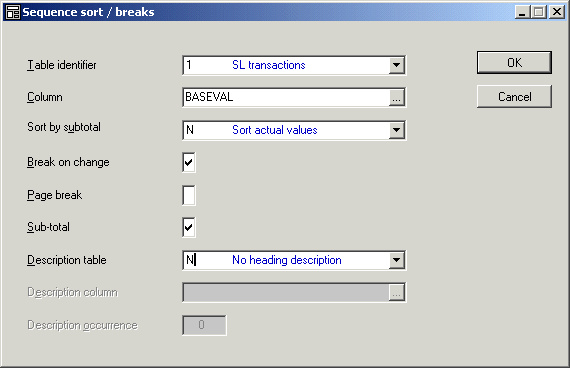
The Sequence Sort / Breaks form is displayed.
The Sequence Sort / Breaks form is displayed when you click the Amend
button in the Sort sequence section of the Sequence tab.
Table identifier: You will complete this
if you have elected to do a bespoke sort sequence, otherwise it is pre-filled.
Tip: Select the drop down menu, adjacent to the Table
identifier field, in order to view / select from all the available tables.
Column: You will be able to choose from
the column name list if you are doing a bespoke sequence, otherwise
it is pre-filled.
Sort by subtotal: This option is
available only if you elect to do a bespoke sort. It will allow you
to take the value of the selected field and accumulate it, then use
the accumulated value to sort. In the case of the sales ledger
transactions table, you may decide to select only outstanding items
that are over 90 days old. You can then sort by the outstanding
value, in descending order, and then output this value at account
code level, but in order of outstanding amount.
Tip: Select the drop down menu, adjacent to the Sort by
subtotal field, in order to view / select from all the available
subtotal sorts.
Break on change: You can decide
whether a break should be introduced in the report if the column
value changes during the course of the report execution. Tick the
check box if a break is required. Once ticked the form will allow
further definition of this break.
Page break: If a page break is required
tick this box. The report will generate a page break so that the next
part of the report starts on a fresh page.
Sub-total: If the report is being broken
into sections with use of the break command then you may want to show
some numeric sub-totals at this point. Set the check box to a tick,
if required. If ticked the report will show numeric sub-totals at
break points for all of the fields on the format which are set to
total. Any numeric field not set up in this way on the format will
not be included in the total line.
Description table: If breaks are defined
you may wish to issue a heading to print above each section of the
report. This prompt identifies the table which holds the column to be
used for such a heading. If, for example, you are sorting a Sales
Ledger report by Account Category then this !id would identify the
Category table which holds the Category Description.
Tip: Select the drop down menu, adjacent to the Description
field, in order to view / select from all the available Description tables.
Description column: The column name held
in the table described immediately above.
Description occurence: If the Description
column name is an 'occurs' column then you must
specify the particular Occurrence which is being used. This parameter
is only prompted if an 'Occurrence' column is
being used, otherwise it is greyed out.
Note: You can repeat the definition of sort columns, applying
breaks as required, until you are finished with all of the ones
chosen. Up to five columns are allowed in the sequence. Example 1 Select all invoices that are over 90 days old. Produce a list of accounts
that have debts in excess of 90 days, sorted such that the company with the
largest 90 day debt is shown first. We could previously list the accounts in account code order, by order of
the Total amount outstanding, by area code and so on, however we could not
have sorted by a figure that was not known until sub-totals. Example 2 List all vehicles sold in Sales Executive order, with the most successful
Sales Exec at the head of the list and the least successful at the bottom. Previously we could sort by sales exec, or by model group, or by the
individual profit made on a vehicle. Now we can immediately sort by the
salesman who has made most profit over a selected period. Example 3 Produce a list of parts by product code, show the profitability of the
parts, with the most profitable product group at the start of the report. As with the previous example, we could only spot individual profits, we
can now sort on an accumulated profit figure. The screen above shows the new option. In this case we are sorting the
accumulated invoice value at sub-total level 2. Notice that Sort and
Sub-total check boxes are both ticked. BUTTONS:
OK: Applies any amendments you have made to the sort sequence
to the format tab.
Cancel: Cancels any changes that you have made to the sort
sequence and returns you to the format tab.
An occurrence (or 'Occurs') column is quite common in a lot of files.
As an example you may like to look at the ADDRESS column in any of
the marketing records such as the Company or Target tables. It is
simply a way of referring to several columns which all contain
similar information such as an address column. Instead of having five
columns called ADDRESS2, ADDRESS2, ADDRESS3, ADDRESS4 and ADDRESS5,
we simply have a column called ADDRESS which has five occurrences.
Whenever an occurs column is used, the system will ask you which
occurrence is required. Try to include the Marketing company address
in any report on the format, selection, derived column or sequence of
any report, and note the screen reaction when they are chosen.
Note: When an occurs column is included in a derived
calculation, it will have the occurrence position number in brackets
after the column name.
The cursor will now proceed through the rest of the columns, and the
columns should be completed in the way described previously. If there
are four columns in the sort, and the definition requires only one
break point, then entering a tick in the break on change check box
will curtail the operation for the remaining columns.
Once the break points have been set up, the cursor will move to the
start and finish prompts. Primer- How does Start amd Finish make the report go faster?
In order to prevent excessive scanning you may choose to limit the
number of records read by making use of the optimisation fields. If a
key-path has been chosen it will appear in this part of the tab and
forms the basis of the optimisation.
A key-path holds the records in order, therefore if you know the
first and last values that you want to search, and the values apply
to the columns in the key-path., you can start and finish the search
according to the values you have. These fields will be prompted if
you are using a standard Key Path or if you are doing a bespoke sort.
If you only want to search part of a table, and you can define the
search area by using prompts, (see section on Prompts), then you will
enter the names of the prompts in these boxes.
In the Access optimisation section of the Sequence tab type in the
key-path number required.
Tip: Select the drop down menu, adjacent to the Key path
field, to view / display all the available key-paths.
These fields will need to be set if you are using a standard
key-path. If you only want to search part of a table, and you can
define the search area by using prompts (see The
Prompt tab), then you should enter the names of the prompt
fields in these boxes.
To define the search area within a table:
Select the key-path number.
Click the Amend button.
The ACCESS OPTIMISATION form is displayed. Tip :
Column description: Defaulted in.
Starting point: Enter the starting point of the keyapath.
Finishing point: Enter the finishing point of the keypath.
Note: If you are able to make use of access optimisation the
run time of the report can be considerably reduced.
Most reports will access all of the records in the table in order to
analyse the data and produce a printed report. In many cases the
number of records required to satisfy the analysis is relatively
small in comparison to the number of records held in the table. If we
were able to search only these few records we could then satisfy the
requirements of the report without having to access all of the data
in the table.
If you want to look for someone's telephone number, you will look in
a telephone directory. The directory has all of the subscribers
listed in name order. In order to locate the number required, you
will move to the relevant part of the listing and search only the
section that deals with the name you require. A search for Mr Thomas
would only take a few minutes. First flick quickly through the pages
until you see the names starting with T, then slow down slightly and
scan the TH section. When you see subscribers names of THOMAS you
will search properly, making sure that the initials and the address
of the one you choose is correct.
In many cases you have made a selection from several hundred thousand
records in only a minute or two, and you have actually only searched
through a small part of the listing. The reason for this is that the
subscribers are listed alphabetically by name. If they were not
listed in this order you would have to search through the whole book
to find the number you want, a job that could take many hours.
In an earlier topic we discussed key-paths.
They are simply listings of all of the entries in the data file.
However, in many cases these listings are held in several different
orders. Having three key-paths for a table is like having a telephone
directory with three sections. The first lists all subscribers by
name, the second section lists them all by address and the third
lists them all by telephone number. You would be able to use the
telephone directory to locate a number in the normal way, to find out
the telephone number and name of somebody who lives in a house across
the road, or to investigate the strange telephone number you wrote in
your diary.
A Sales Ledger transaction table can hold many thousands of records.
The Report Generator will search through all of them as often as you
want, but when the table is large the search is liable to take longer
than is found acceptable.
One of the key-paths for this table is ACCOUNT/DOCDATE, an index
which holds all of the transactions in account code order, and then
in document date order.
An example to consider (on a transaction table which holds 200,000
items) is as follows. If a report required that, for a given account,
all invoices valued at over £200 should be printed, the system
could search through the whole table and list ten of the thirty
invoices held for that account which satisfy the criteria. In order
to do this it has had to search through all of the 200,000 records in
the table.
Now we run the report again after a small amendment, we add a prompt
which asks for the account code, and put the prompt field name in the
start and the finish fields in the ACCESS OPTIMISATION form of the
Sequence tab. The report sequence must have a key-path which is
primarily by ACCOUNT.
When the report runs a second time, it will ask for the account
number required at the start. Once it is typed in, the system will
examine the key-path and go straight to the part of the index which
deals with the required account. It will start to search the records
and continue until the next account code in the sequence is
encountered, at which point it will stop.
The same report will be produced. However, in order to run the
report, it has only searched through 30 records and took only a few
seconds. This is an improvement in efficiency of over 6,000 per cent
and, on top of that, the system performance has not been adversely
affected for other users.
Sequence type
Direction
Sort Sequence
![[...]](Ellipsis.gif) This button is called an Ellipsis . It provides a search facility.
Click on the button to search for the information that you require.
This button is called an Ellipsis . It provides a search facility.
Click on the button to search for the information that you require.
The Sequence Sort / Breaks form
Examples on sorting reports using sub-totals
Occurrence columns
Access Optimisation
Key-path
Start and Finish
The Access Optimisation form
This button is called an Ellipsis . It provides a search facility.
Click on the button to search for the information that you require.
Primer - How does Start and Finish make the report go faster?
