


This option is available when you select the output type "B" from the Title tab to produce labels.
Once defined the format has the appearance of a compact multi line report. The report is created in the normal way with the exception of the output type and the format.
The format initially appears normal, however when the Format button is selected the following form will appear.
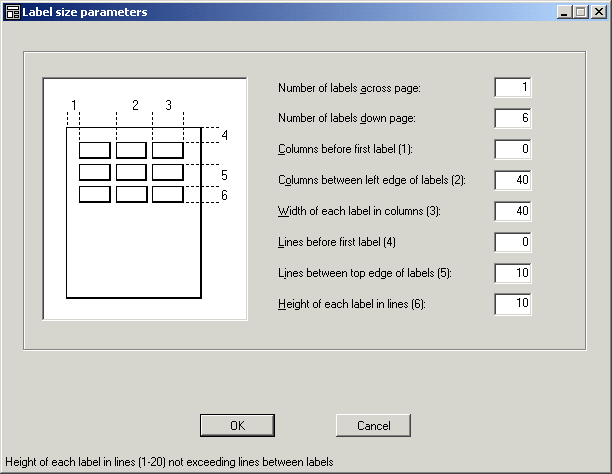
Apart from the first two prompts, each question relates to a numbered measurement on the associated diagram on the left of the form. In order to formulate the label dimensions, and the page set up in General, you should complete the following prompts.
This will allow you to identify the number of labels across your chosen stationery. Be aware that you are limited on your choice of fonts from the system.
This will allow you to identify the number of labels going down your chosen stationery. This setting is important. If you are using a dot-matrix printer with continuous stationery you must make sure that this setting, combined with the other vertical label settings, is precise. A degree of trial and error may be required. Often the continuous stationery will not have a gap between the bottom of the last label on the page, and the top of the first label on subsequent pages.
Report Generator will issue a form feed at the end of a page, with continuous stationery this will need to be suppressed with the <>'rg_supress_ff() function otherwise chaos may ensue.
Labels being printed on A4 sheets with a laser printer will be easier to set up because the page throw will work correctly.
This will allow you to determine the tab, or indent, on the page before you are able to print the first character on the left-most label. It is a one-off figure and will not be added to the left of all of the labels on the page. Enter a number to indicate the number of character spaces, not the number of inches or millimetres.
This is the number of columns between the first character that will print on each label. Once this is entered, and the next prompt is completed, the system will know how wide the labels are, and how far apart they are.
This is the maximum number of characters you can print across a single label.
This is the space, (if there is one) above the top label on a page. The space is measured as a number of lines. It is entered once and not assumed to be the space between each label.
This is the gap, (measured as a number of lines), between the top line of two vertically subsequent labels. When compared to the answer to the next prompt the system will know the depth of each label, and how they are spaced.
The depth of each label measured as a number of lines. The Labels are printed in much the same way as a normal report. There are no extra facilities associated with the label printing.
