


Batched reports option is accessed from the Report Generator MAIN MENU.
There will be times when it is more efficient to run reports when you are away from your desk. In order to accomplish this there are two options, Batch reporting and Scheduled reports.
This will allow the user to collate several reports to run sequentially in a batch. This is not an overnight batch, please be aware that it will only run reports on a normal terminal that is logged into the system.
This sort of batch is particularly useful for running reports with an RTF output , because this type of report needs to be able to get to locally connected, or networked printers that are normally not available.
Run a report from Run Report Generator that is suitable for batch output, (Display reports for example would not be suitable), you are offered the options to run the report immediately, add to batch, or schedule it. See figure below.
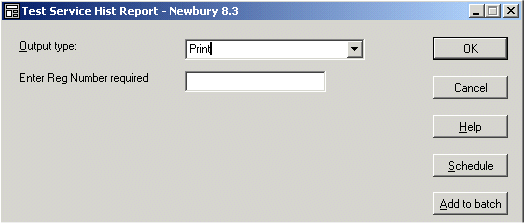
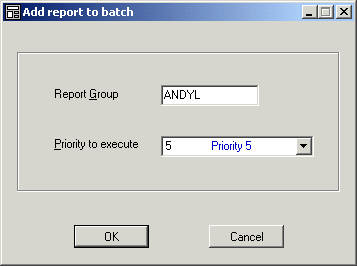
Select the Add to batch button. The Add to Batch form is displayed. Type in the batch name you want to use, if it exists, it will add the report to the existing batch, if the batch does not exist, it will create a new batch for you. Select the user priority you require for running this report in the batch. See figure below.
With the batch now in place, go into Batched Reports from the Report Generator main menu. You will be presented with the ** Batched Reports form (** being the module).
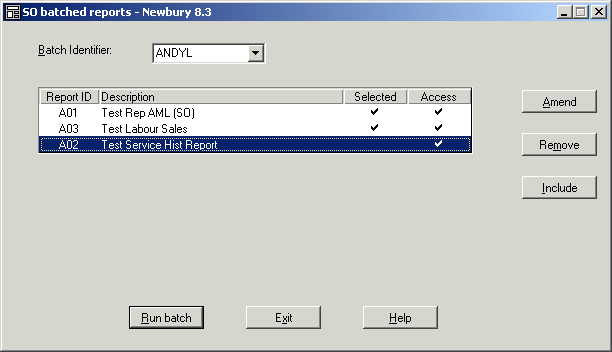
Select the batch you require.
Tip : Click on the DropDown
to select.
This form will allow you to amend any report that you highlight. This is useful for changing any prompt values before the report runs. You can also exclude a report from the batch temporarily, or remove it from the batch altogether.
If you choose to run the batch, each of the reports will be run by the system. When all of the outputs from the reports have run, you will be taken back to the Report Generator main menu.
If you want to remove a batch from the list, simply remove all of the reports contained within the batch. When all of the reports have been removed, the batch header record will be deleted. Next time you initiate a batch, the group will not be included on the list of batches.
Instead of running a report in a batch, you can run it as part of the Timed Operations Schedule. This will allow you to output a report at specific times of the day,week, month or year.
Run a report from Run Report Generator that is suitable for batch output, (Display reports for example would not be suitable), you are offered the options to run the report immediately, add to batch, or schedule it, the same as Batch reporting.
Select the Schedule button. The following form is displayed which is the Timed Operations Schedule form.
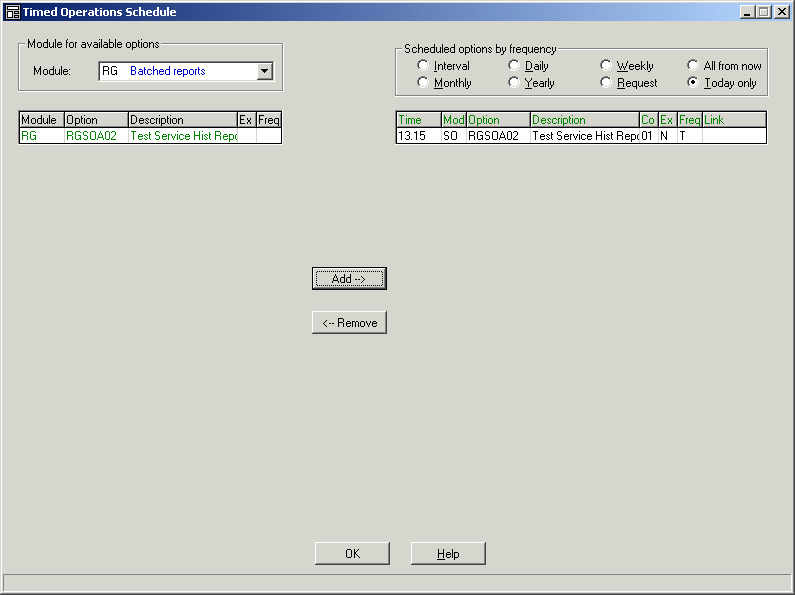
The form is showing the report already set up for timed events. The report you have selected is shown on the left hand side of the form. Click the Add button to edit the report before it is added to the Timed Events list on the right hand side.
The following form will appear.
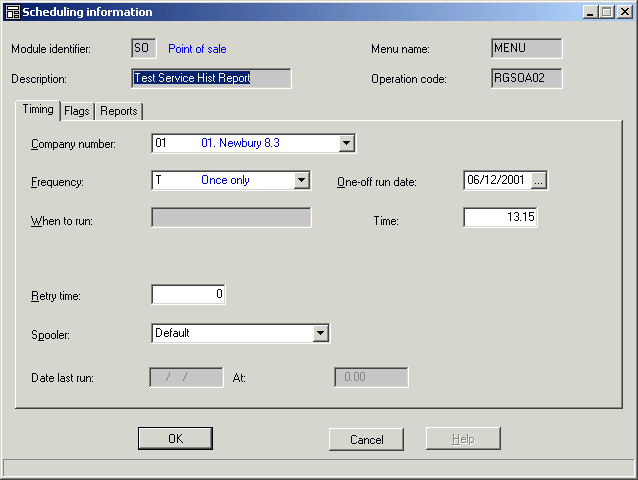
You may now edit the following features :
Company number: You can select the company number the report is going to run across
Tip : Click on the DropDown
Frequency: You can select when you want the report to run from the following options:
Interval. This allows you to run an option perhaps once every two hours.
Daily. This will run the report once each day.
Weekly. This will run the report once each week.
Monthly. This will run the report once each month.
Yearly. Handy if you keep forgetting to run a report once each year!
Once only. This will run the report once only.
When you have made your selection, you need to complete the rest of the form as applicable.
Once only report
Select "Once only" from the frequency list, you can then complete the one-off run date. Remember that if you want to run the report tonight in the early hours of the morning, you will need to select tommorrow's date.
Also complete the time the report should start. Type this in as hours and minutes, try to avoid the time of the day or night that the system is running it's backup.
Finally you can select the spooler that you require the report to output to.
Weekly
Select the "Weekly" output, then select the day of the week that you want the report to run on. This also includes prompts for "End of Week" (which may be a Friday or Saturday).
The same sort of selection is allowed for Monthly. Type in a number from 1 to 28 to signify the day of the month the report should run, or type a zero to signify the end of month.
It is better to have one or two people responsible for batched reports. In this way, excessive numbers of reports within the batch process can be avoided.
The batch system records the last date a report was run and will not run it twice in one day. Therefore if reports are run during the day as part of a group of reports, they will not be run again by the end of day system. However, grouped batch reports will be executed by the end of day batch if they are not run during the day.
Because the system records when a report was last run, it will pick up any reports that were missed. If a report is set to run on the 15th of each month, it may get missed if the 15th happens to fall on a Sunday. In this case, the system will recognise this when the reports for the 16th are run and it will then include missed reports from the 15th.
In the same way, a report set to run weekly on a Monday may fall foul of a Bank holiday weekend if end of day is not run on a Monday. In this case, the reports will be run as part of the Tuesday batch. Please remember to allow for this eventuality in your selection criteria. There is an example of how to do this in the advanced derived field topic of this help.
Any run time prompts which were completed prior to running the report into batch will be remembered by the system and used each time the report is included in the batch. Select the menu option Review batch to change them.
BUTTONS
Amend: Allows you to amend the selected report criteria.
Remove: Displays a Confirm dialog box where you need to either confirm that you wish to remove the report from the batch by clicking the OK button or return to the ** BATCHED REPORTS form without removing the report by clicking the Cancel button.
Include / Exclude: These two buttons allow you to either include or exclude a selected report from the batch.
Run batch: Displays a Run Batch ***** dialog box where you need to either confirm that you wish to run the batch by clicking the Run button or return to the ** BATCHED REPORTS form without running the batch by clicking the Cancel button.
Exit: Returns you to the Report Generator MAIN MENU.
Help: Displays help on the current application in your default company browser.
